Cloud Foundry application deployment fails with No space left on device


Introduction
Why Cloud Foundry Deployment Fails “No Space Left on Device”
When Cloud Foundry deployment fails “No space left on device”, it can immediately block releases, delay production pushes, and disrupt CI/CD pipelines. In SAP Business Technology Platform (SAP BTP), this error is one of the most common staging failures developers face. Deploying applications to the Cloud Foundry environment in SAP Business Technology Platform (SAP BTP) is usually smooth. In fact, most deployments complete without issue when best practices are followed.
However, sometimes a devastating blocker appears:
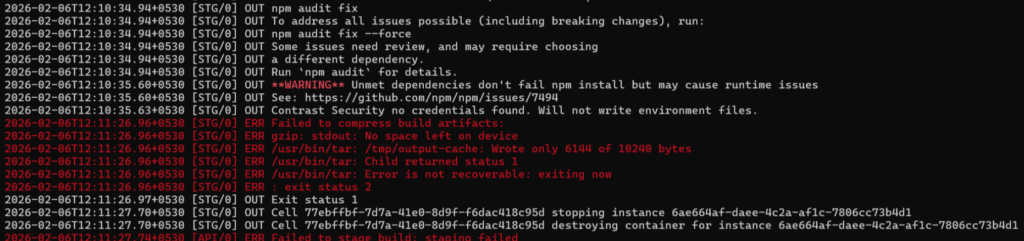
At first, this error looks alarming. It feels like corruption. It feels catastrophic. Yet, surprisingly, it is rarely caused by broken archives. Instead, in most cases, the real problem is disk exhaustion during staging. In other words, your application simply runs out of space before it finishes building. Therefore, before you panic, it is crucial to understand how SAP BTP Cloud Foundry handles staging and droplet creation.
Cloud Foundry Architecture Overview (SAP BTP Context)
SAP BTP’s Cloud Foundry runtime is built on the open-source Cloud Foundry foundation. The application deployment lifecycle typically follows this sequence:
The following sequence occurs:
- Source code uploads.
- The staging container starts.
- A buildpack executes.
- Dependencies install.
- A droplet is created.
- The droplet is compressed.
- The app starts.
Now, here is the critical part.
The failure usually happens during buildpack execution or droplet compression. In other words, the system tries to compress build artifacts — and suddenly there is no disk space left.
📌 What Actually Causes the Failure?
Several constraints exist inside the staging container:
- Temporary disk limits
- App disk quota limits
- 1.5GB maximum upload size
Consequently, if your application grows beyond these limits, staging collapses.
Common triggers include:
- Oversized
node_modules - Dev dependencies included in production
- Large log folders
- Unnecessary test files
- Inflated NPM cache
- Monorepo uploads
Although your project folder may look small locally, staging can temporarily expand it 2–4x.
For example:
| Component | Size |
|---|---|
| Source | 200MB |
| node_modules | 800MB |
| Cache | 300MB |
| Build artifacts | 400MB |
| Total | 1.7GB+ |
Clearly, that exceeds limits.
Step-by-Step to resolve
Step 1: Increase Disk Quota — Carefully
First, check current usage: If disk usage is near the limit, scale it:
cf scale <app-name> -k <1-10>GB
Disk quota ranges from 1GB to 10GB.However, do not blindly set 10GB. Instead, scale intelligently. Monitor regularly.
Remember:
- Memory ≠ Disk
- Increasing memory will NOT solve this issue
Step 2: Optimize NPM Cache Behavior
Sometimes the real culprit is NPM cache inflation.
Certain NPM versions aggressively cache packages. Consequently, staging containers fill quickly.
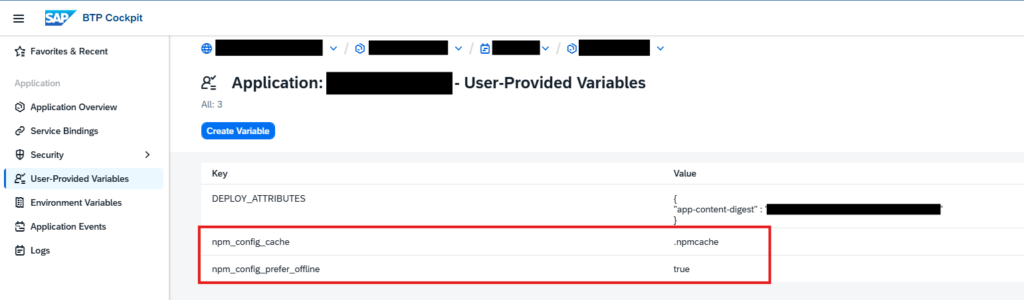
To fix this, modify your manifest.yml:
applications:
  - name: my-app
    env:
      npm_config_cache: .npmcache
      npm_config_prefer_offline: true
This simple configuration change can dramatically reduce temporary disk pressure. To add the following two environment variables to the application’s manifest:
Step 3: Use a .cfignore File (Critical)
Many developers forget this step. Unfortunately, that mistake is costly. Create a .cfignore file in your project root:
node_modules/
.git/
.gitignore
*.log
coverage/
test/
tmp/
dist/
Without .cfignore, Cloud Foundry uploads:
- Git history
- Logs
- Local caches
- Test reports
- Coverage artifacts
Therefore, your deployment package balloons unnecessarily.
Conclusion
Deployment failures in SAP BTP Cloud Foundry due to:
- “Failed to compress build artifacts”
- “gzip: stdout: No space left on device”
are almost always caused by:
- Disk quota limitations
- Oversized application packages
- NPM cache mismanagement
The solution is systematic:
- Scale disk quota properly
- Reduce application size
- Optimize dependency handling
- Clear buildpack cache if necessary
When these steps are followed, deployments become stable, predictable, and production-ready.